daniel careon wrote: Sun Jun 21, 2026 2:10 pm
I'd absolutely love to see some of your screenshots, the scenery in that game is just gorgeous. I always just end up getting distracted by the scenery and going hunting instead of actually doing the story missions.
I can't deny the scenery is beautiful, but i mostly take screenshots of my gang instead, haha.
Can't relate to the hunting instead of doing missions... I mostly started playing the game because i was interested in it's story, so i mostly just focus on doing missions.
DaveRattlehead wrote: Mon Jun 22, 2026 7:25 pm
It's an amazing game! It's definitely very different from Rockstar's previous games. The setting, the story, the level of detail in absolutely everything you can imagine... It practically leaves you speechless.
That said, I still think I like RDR1 more because it's a lot more rock&roll than RDR2
It is amazing indeed
RDR1, eh? I kinda wish i could play it, but alas... 1) i don't think we have any physical discs of specifically RDR1 for PS4 here, in the area where i live. I guess i could buy it digitally, but i'm really used to discs, so... And 2) i don't think my dad would approve, i have a feeling he's gonna be all "we already have RDR at home", which is honestly valid, but also i'm just curious how the first RDR is different from the second one (like gameplay wise)
Anyways, here's some screenshots :
19e784ae6bf62-screenshotUrl.jpg
19ee005257769-screenshotUrl.jpg
19ee00542b322-screenshotUrl.jpg
(I have more screenshots, but the device i'm currently using doesn't have them. And my PS app is kinda glitched too, it doesn't show any screenshots, and it also shows that i only have played Marvel Rivals, even though that's not true and i have deleted that game like a month ago Weird...)
RayGamer99 wrote: Mon Jul 13, 2026 12:36 am
Don't mean to bug anyone, but I never got any sort of response to this question I had a couple months back. I'm pretty sure it just got overshadowed by Ramen Oranges's animation editor, so I'm going to ask this again and see if I can get any assistance since I'm still dealing with this. For context, I'm trying to get the level with the background intact so that I can use a portion of that level for some of my images, but without any background elements that isn't possible.
It's a very strange issue that I've never seen before. Are your IPK files fully extracted? Are you loading the right scene file ("world/jungle_retro/level/ju_a5/ju_a5_swingingcaves.isc")? And are you using the latest version of ubi-canvas-delta? As for Unity itself, what version are you on? I recommend getting 2022.3.62f2 here. For reference, it should look off in Unity's scene view, but correct in game view:
New runs have just been validated on speedrun.com!
Fairy Glade: Any% IL - PC in 03m 49s 139ms by EricZen - 1st place
Submitted: 05/07/2026 Platform: PC
EricZen wrote:First FG rekki with Ly Skip! Shitty tornado skip but i kinda expected that after second try void and a flawless Ly skip. Improvable by like 15s at least but not without Ly skip anymore.
Echoing Caves: Any% IL - PC in 01m 14s 120ms by Dr_Otto9 - 2nd place
Submitted: 07/07/2026 Platform: PC
Dr_Otto9 wrote:Rock
*mod note: retimed to 1:14.120 LRT*
Echoing Caves: Any% IL - PC in 01m 13s 718ms by Phaeally - 1st place
Submitted: 08/07/2026 Platform: PC
Phaeally wrote:An incredible performance in such a short practice period. Really proud of it. Rock
Don't mean to bug anyone, but I never got any sort of response to this question I had a couple months back. I'm pretty sure it just got overshadowed by Ramen Oranges's animation editor, so I'm going to ask this again and see if I can get any assistance since I'm still dealing with this. For context, I'm trying to get the level with the background intact so that I can use a portion of that level for some of my images, but without any background elements that isn't possible.
RayGamer99 wrote: Fri Apr 24, 2026 12:22 am
Hey everyone! I've started using Ubi-Canvas to get a better look at the levels of Rayman Legends, but one thing is still bugging me: where are the level backgrounds?
Screenshot 2026-04-23 at 7.16.04.png
This is a screenshot I took of the opening bit of Swinging Caves, as seen through Ubi-Canvas. For some reason, the forest background is completely absent, and I don't really know why. Any help with solving this issue would be greatly appreciated, as I'm pretty sure I'm just missing something.
Discuss speedrunning news, techniques and events in our Rayman speedrunning section!
Participate in RPC's Signature Of The Month competition for the chance to win prizes including tings and special ranks!
Show your editing skills in RPC's Manipulate the Image competition, which is now expanded to include non-Rayman images!
Latest news
Fri Jun 26, 2026 10:32 pm:
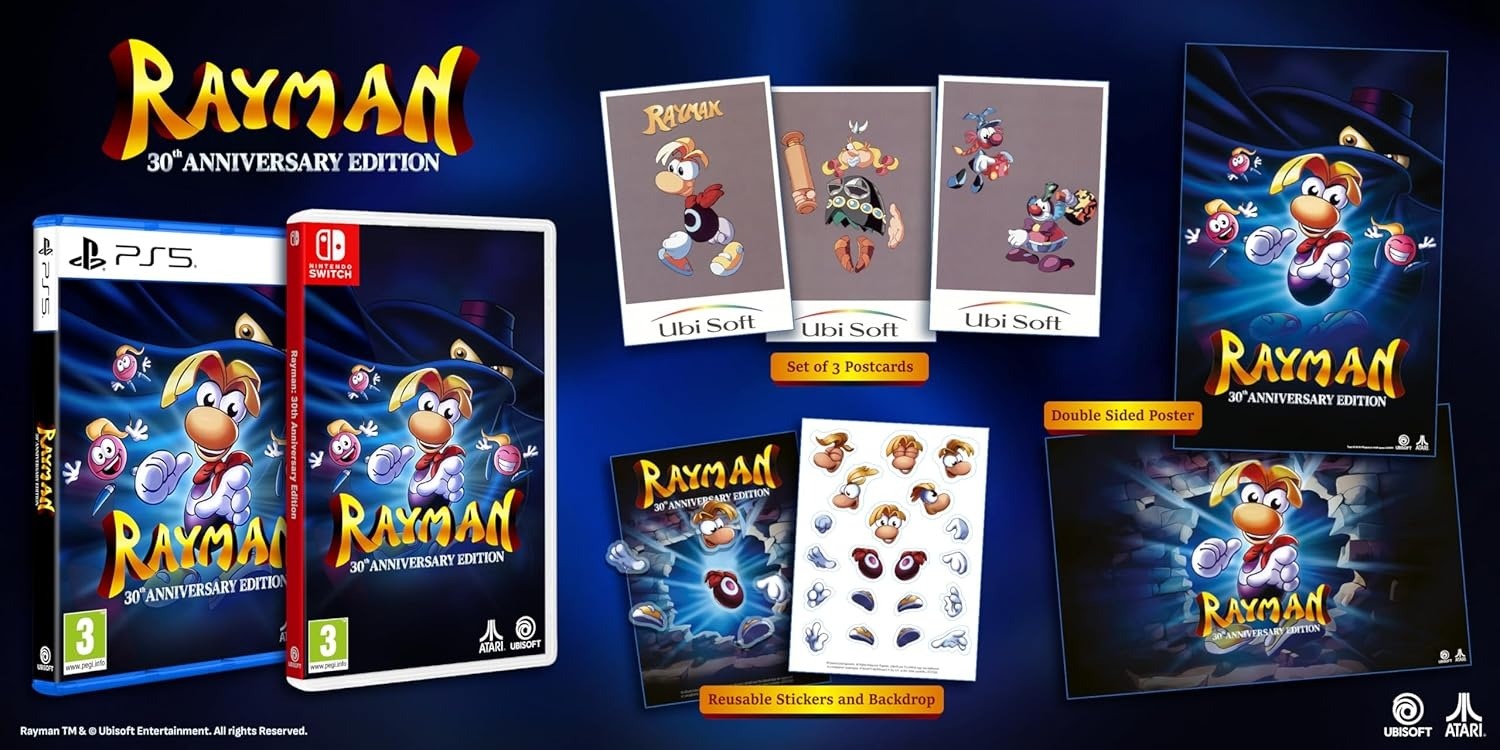
The physical version of Rayman 30th Anniversary Edition was released today.
Alongside the game for modern platforms such as the Nintendo Switch 2, this physical release includes a set of three postcards, a few stickers, a double-sided poster, and a reversible cover.
For players who held out on the digital launch due to early save-related glitches, these issues have now been resolved following the recent v1.1 update.
It's official: the rumors are now reality! Although many details leaked over the last few days, Ubisoft has formally announced both Rayman Legends Retold and Rayman Origins Enhanced Edition during tonight's State of Play presentation.
Both games are coming to PlayStation 5, Xbox Series X|S, Nintendo Switch 2, and PC on October 1, 2026! The bundle will retail at the price of $39.99, with Origins Enhanced Edition included free!
Rayman Legends Retold represents a significant modernization of the original title. It features a visual overhaul that replaces the classic watercolor look with a modern 2.5D aesthetic, alongside an entirely new storyline and a fresh villain. Other key additions include brand-new music levels, a realistic redesign for Betilla, and a minor cosmetic tweak for Rayman himself (who now has two separate eyes), along with new costumes referencing older games and other series. Most notably, the game is set to introduce fully 3D segments featuring rail-shooter gameplay, where players take to the skies on the back of a dragon to shoot down enemies.
As for Rayman Origins Enhanced Edition, running in 4K resolution at 60 FPS, this remaster updates the game for modern platforms with quality-of-life and accessibility features. It also appears to integrate the previously exclusive PlayStation Vita content, alongside updated photoboard designs and Murfy.
What are your thoughts on this? Head over to our newly opened forum topics to join the discussion and share your expectations.
Following up on the teaser from a couple of days ago, Youtooz has now officially revealed the full design of the upcoming Ly the Fairy plush!
But that's not all: the manufacturer also unveiled a brand new Rayman "stickie". For those unfamiliar with the term, Youtooz "stickies" are mini plushies equipped with magnets inside, allowing them to stick to metal surfaces (like fridges or PC cases) or to each other.
You can check out the full reveal images of both the Ly plush and the Rayman stickie below:
Collectibles manufacturer Youtooz has recently teased what appears to be an upcoming plush toy of Ly the Fairy. First introduced in Rayman 2: The Great Escape, the iconic character seems to be the latest addition to the company's growing lineup of Rayman merchandise. You can view the teaser image below:
Former Rayman 3 gameplay programmer Yann Masson has just shared early development footage of the game discovered in his personal archives. The newly surfaced video provides a fascinating look into the title's production, most notably showcasing the scrapped sequence where the Xowar chases Rayman, viewed from a frontal perspective:
What better way to celebrate the Chinese New Year than with a major milestone for our knowledge base? The Chinese version of RayWiki is officially published!
This project has been in the works for more than two years, representing a massive effort to make the Rayman universe accessible to a wider audience. To ring in the new year, the wiki launches with an impressive 400 articles already written and available.
A massive congratulations and thank you to the main contributors, RayGhox and Game Ze 2, for their dedication in bringing this project to life.
The rumors were true! After the rating leak earlier this year, Ubisoft officially unveiled Rayman 30th Anniversary Edition during today’s State of Play. Developed in partnership with Digital Eclipse, the compilation brings together five versions of the original game: the PlayStation, MS-DOS, and Atari Jaguar releases, as well as the Game Boy Color and Advance versions. The collection also marks the first official commercial release of the 1992 SNES prototype.
In terms of extra content, the package notably features the Bible of Game Design, developer interviews, and unreleased concept art. The collection also adds modern quality-of-life features, including rewind capability, save states, and toggleable cheats (infinite lives, unlock all levels).
In total there are 147 users online :: 4 registered, 1 hidden and 142 guests (based on users active over the past 5 minutes) Most users ever online was 3065 on Mon Feb 03, 2020 5:23 pm
 RayWiki is the largest source of Rayman knowledge and a community encyclopedia. Whether you're looking for information or simply feel like contributing to this great project, do not hesitate to visit our wiki.


 Weird...)




 Ubisoft has agreed to support the event with the following prizes:


